
Set up your editing app
CloudCast picks up your editing app's NDI output automatically. Each app has a one-time setting to switch that output on.
DaVinci Resolve
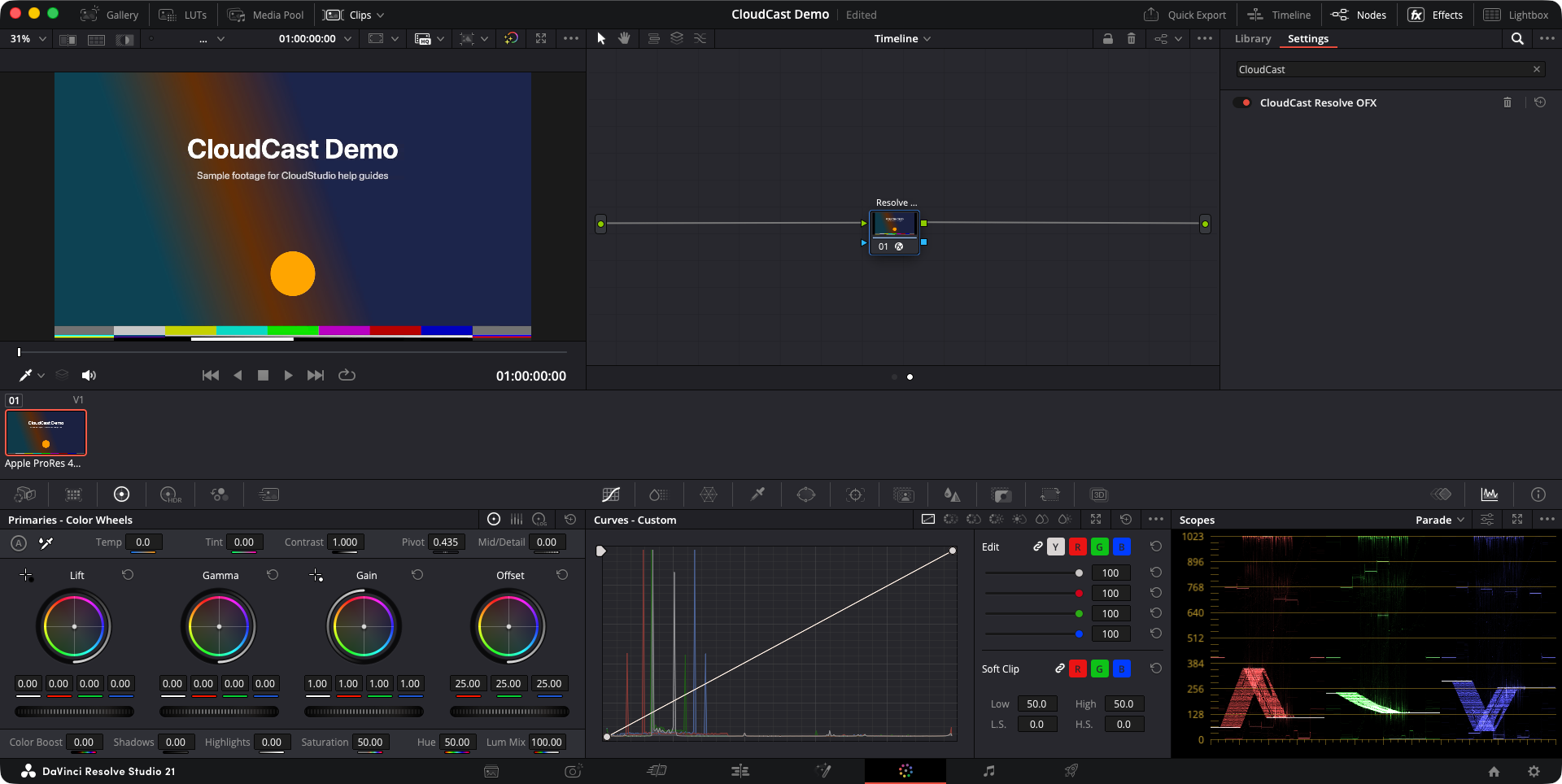
- Open the Color page.
- In the node editor, switch the dropdown from Clip to Timeline.
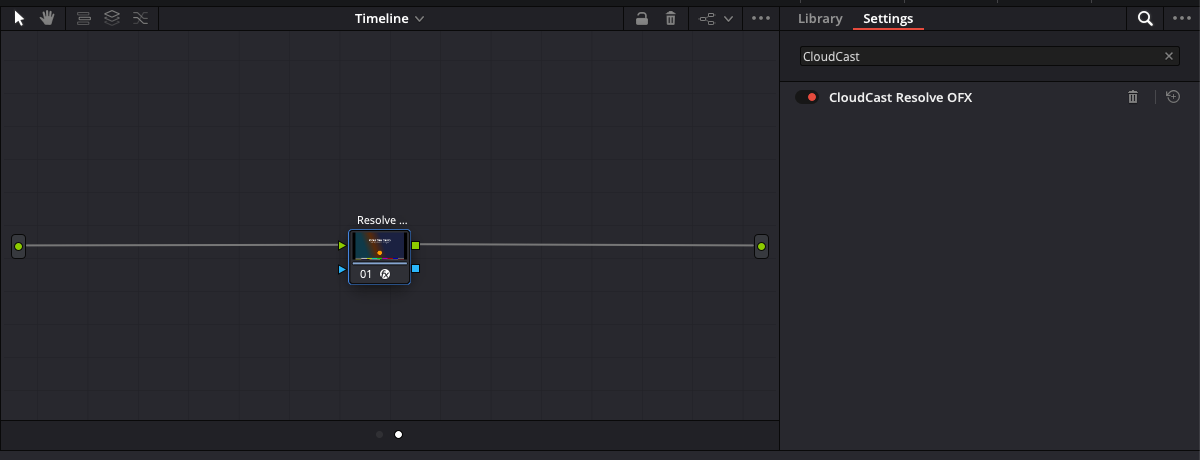
- Open Effects, search for CloudCast, and drag Resolve OFX into the graph. Connect it between the input and output, as shown below.
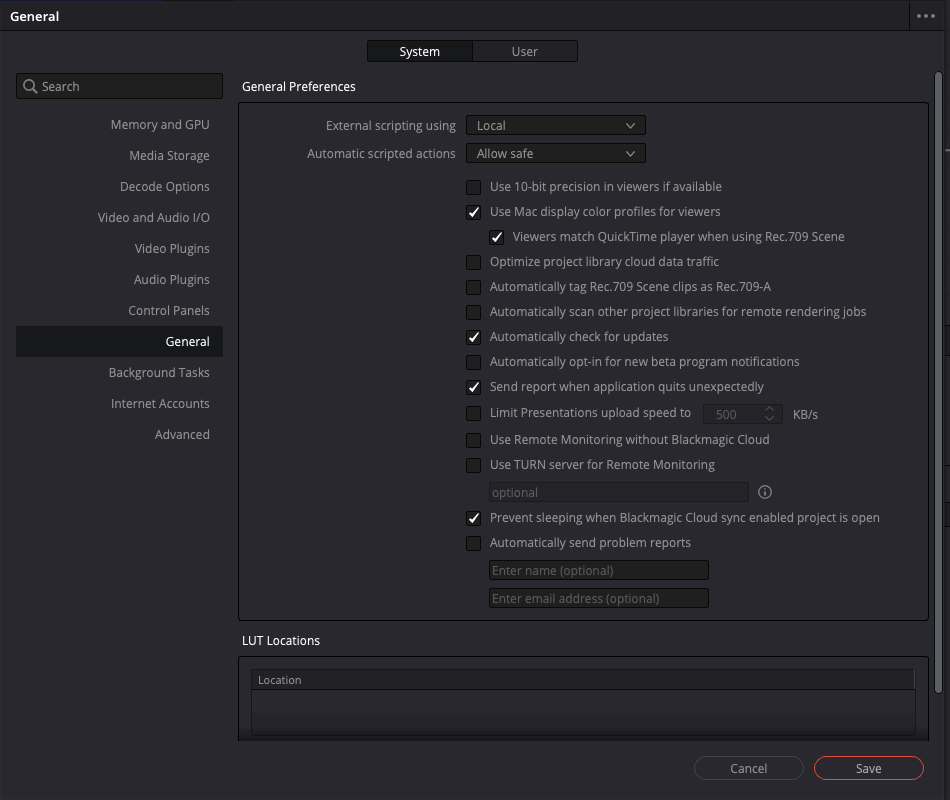
- For timecode and markers, open DaVinci Resolve ▸ Preferences ▸ System ▸ General and set External scripting using to Local. Restart Resolve after changing it.
INFO
Resolve timecode and markers also need Python 3 on the station. The setup check tells you if it's missing. Picture, sound and notes work without it.
Adobe Premiere Pro
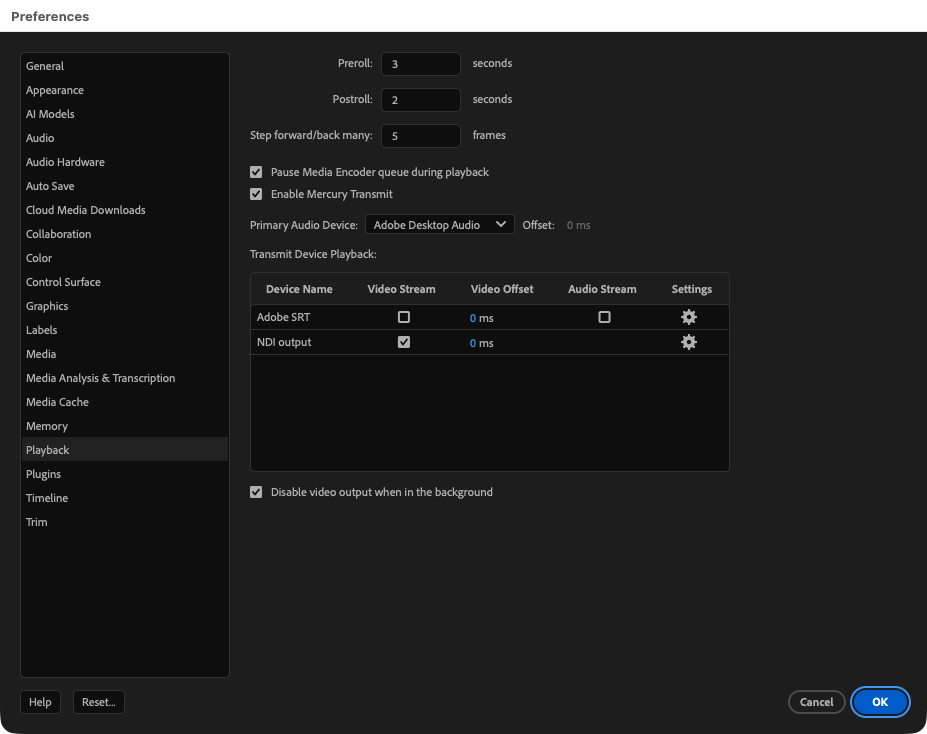
- Open Premiere ▸ Settings ▸ Playback…
- Tick Enable Mercury Transmit.
- In the Transmit Device Playback table, tick Video Stream for NDI output. Leave Audio Stream off: CloudCast takes the sound straight from Premiere.
- Click OK.
TIP
Disable video output when in the background stops Premiere sending picture whenever another app is in front. Keep Premiere in front while you're live, or untick this setting.
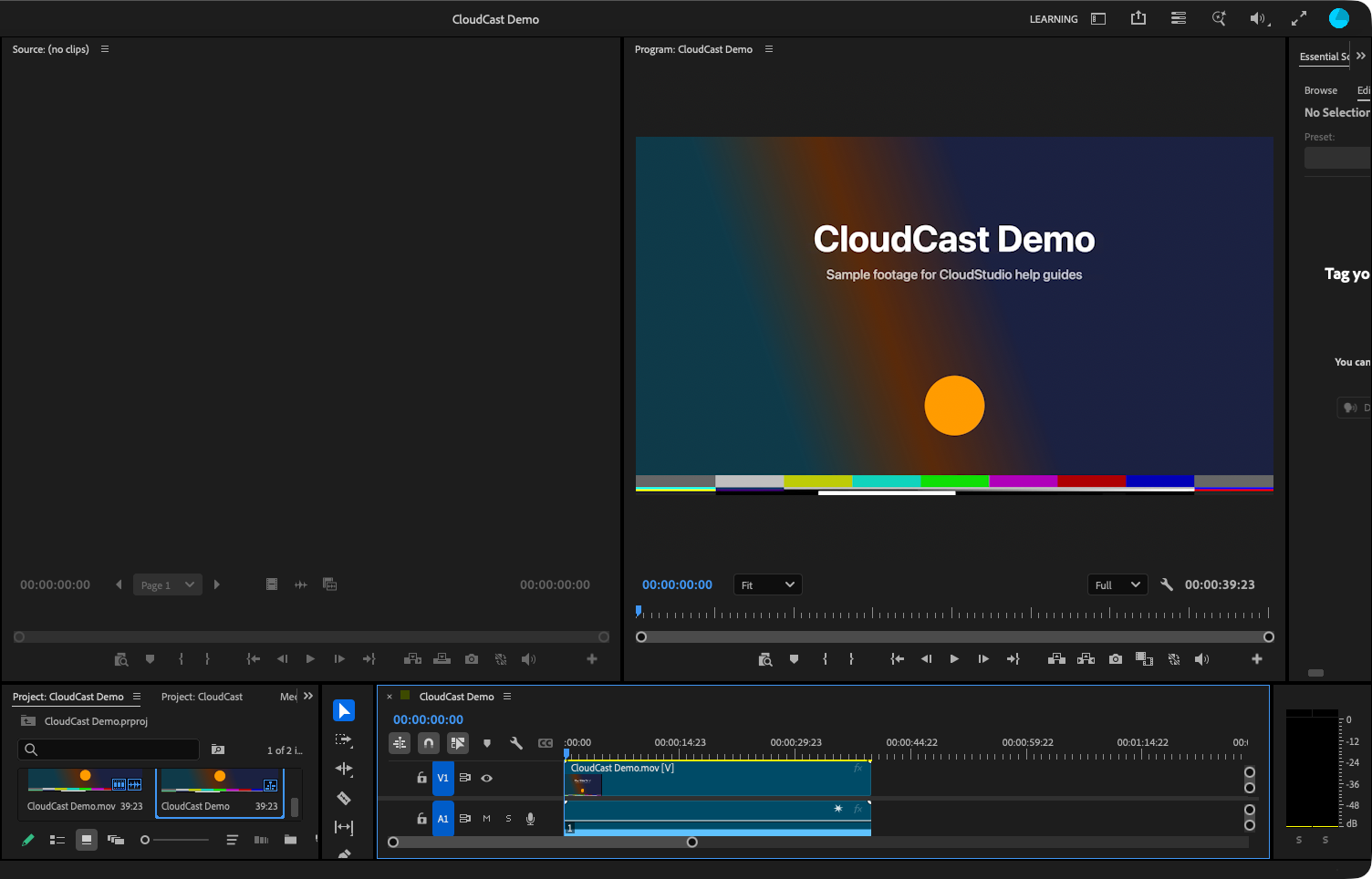
To get notes as sequence markers, open Window ▸ Extensions ▸ CloudCast and leave the panel open. With a sequence open, it says it's waiting for a live session:
Avid Media Composer
- Open Tools ▸ Command Palette and go to the More tab.
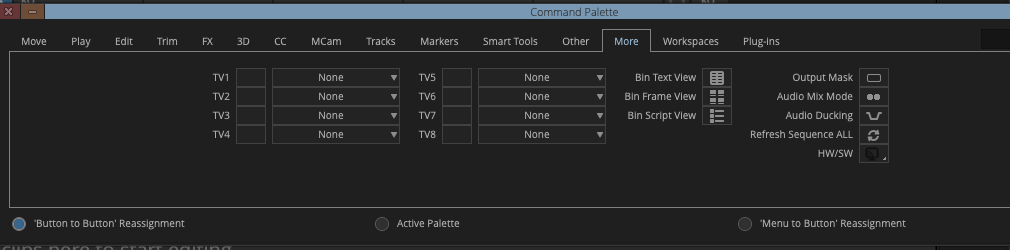
- Choose Active Palette at the bottom, then right-click HW/SW and pick NewTek NDI.
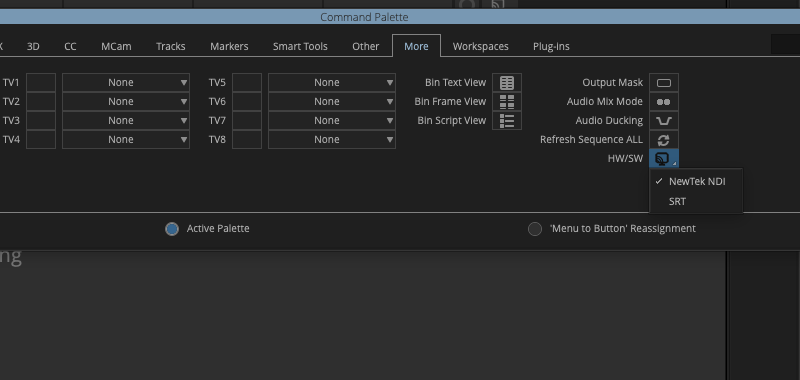
- Click HW/SW to start sending. It turns red while it's sending. Your project's title bar ends in NewTek NDI.
- Keep your sequence in the Record monitor. CloudCast reads the playhead from it and puts markers on V1.
TIP
If your speakers go quiet while you're sending, turn on Media Composer's Play local audio when broadcasting option.
The setup check
CloudCast runs a setup check when something needs attention. It re-checks every couple of seconds, so fix an item and it turns green by itself.
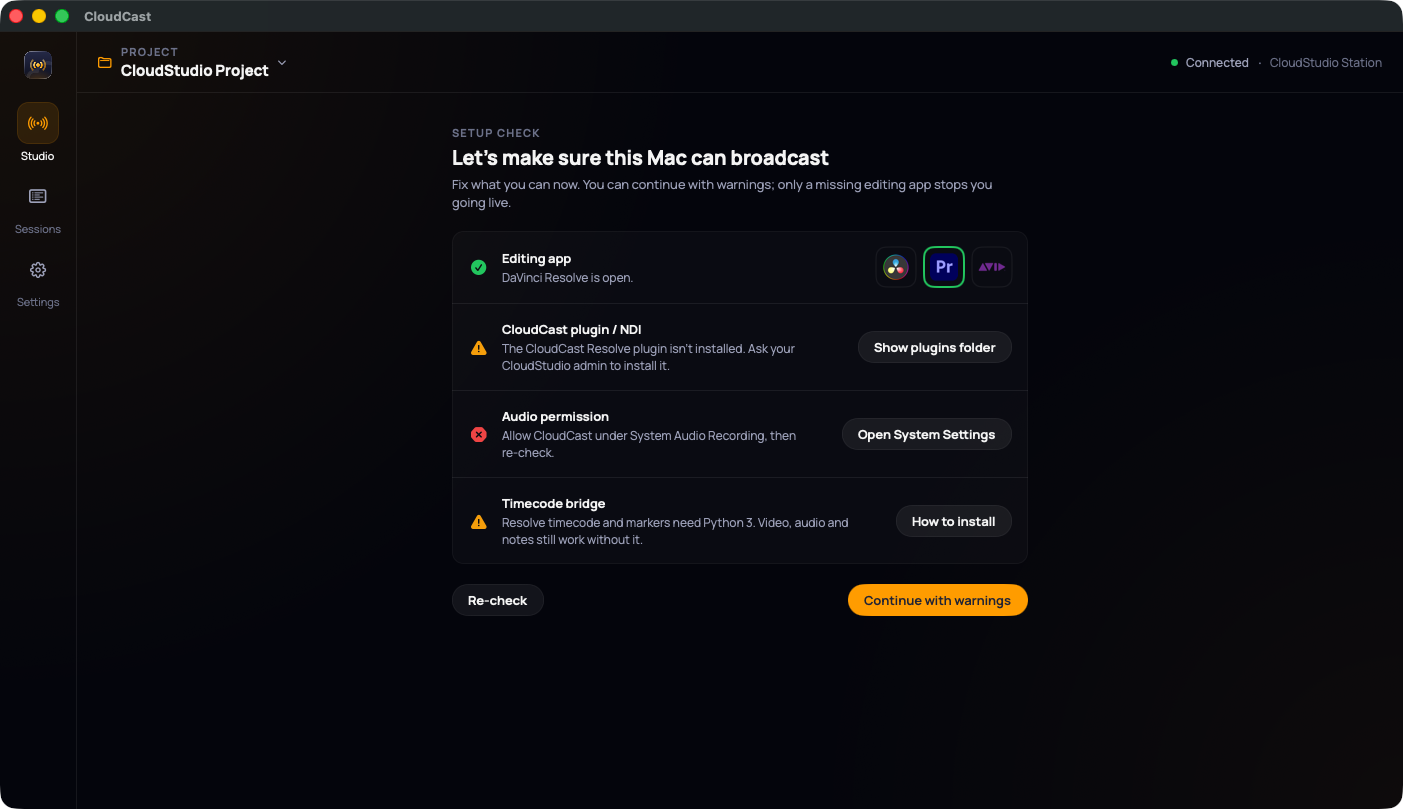
| Check | What it means | Fix |
|---|---|---|
| Editing app | Resolve, Premiere or Media Composer is open. Only this check stops you going live. | Click the app's icon to open it. |
| CloudCast plugin / NDI | Your app's NDI output is visible. For Resolve, the CloudCast plugin is installed. | Follow the steps above for your app, or ask your admin to install the plugin. |
| Audio permission | macOS lets CloudCast capture your app's sound. | Open System Settings → allow CloudCast under System Audio Recording. |
| Timecode bridge | CloudCast can read your playhead: Python 3 for Resolve, the local API for Media Composer. | How to install. |
You can Continue with warnings. Your stream still works, but notes may arrive without timecode.