
Jump Desktop
Jump Desktop shows your workstation's screen on your computer and sends it your keyboard, mouse and sound. It's free.
1. Download it
Use Connect ▾ → Download Jump Desktop on the Workstations page, or download it directly:
- Mac: jumpdesktop.com/downloads/jdmac. Open the .zip and drag Jump Desktop into Applications.
- Windows: jumpdesktop.com/downloads/jdwin. Run the installer.
2. Already have it? Update it
Older versions can fail to sign in with SSO.
- Mac: Jump Desktop menu → Check for Updates…
- Got it from the Mac App Store? Update it in the App Store.
- Windows: download and run the latest installer from the link above.
3. Sign in with SSO
You don't need a Jump Desktop account. You sign in with your CloudStudio login.
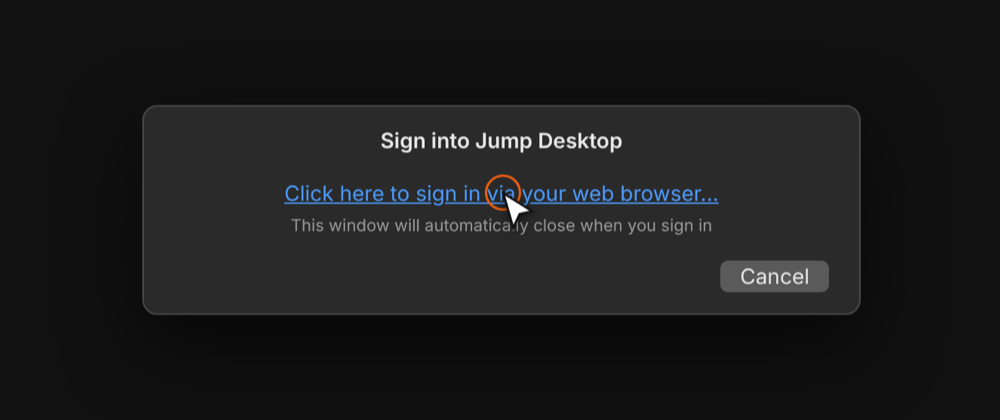
Open Jump Desktop and click Sign In at the top.
A small window says Sign into Jump Desktop. Click Click here to sign in via your web browser…
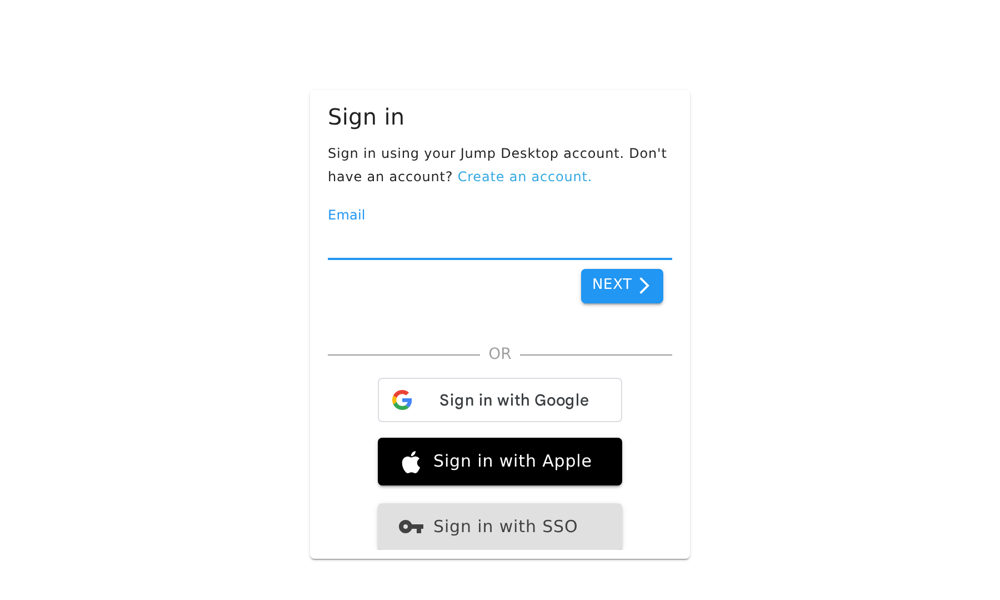
Your browser opens Jump's sign-in page. Skip the email box and click Sign in with SSO at the bottom.
Type
cloudstudioas the company name. Don't type your email. Click Continue.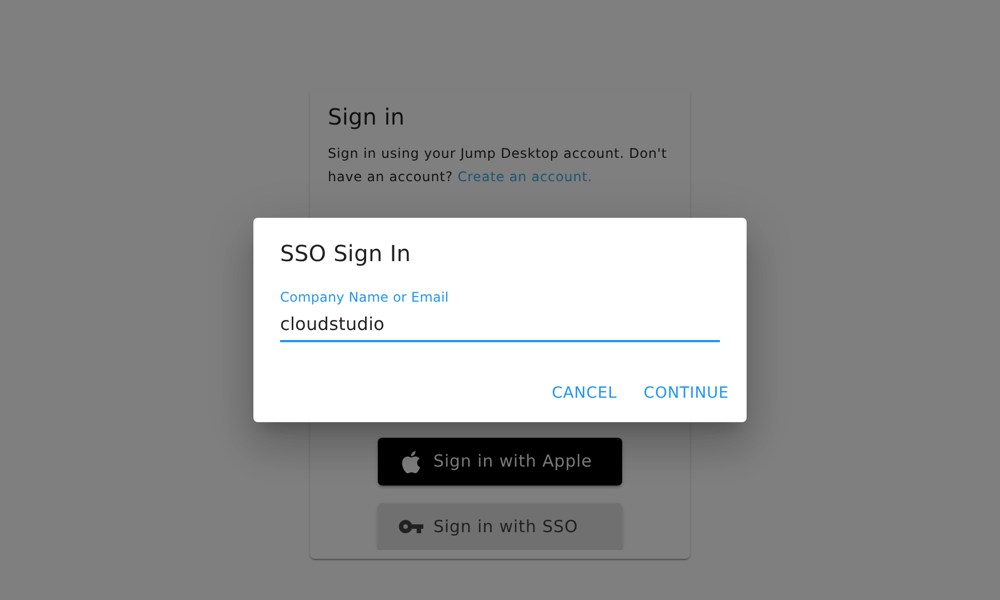
If you're already signed in to CloudStudio in that browser, you're done. If not, sign in with your CloudStudio email and password.
Jump's window closes by itself and your workstation appears.
4. Connect
Double-click your workstation in Jump Desktop.
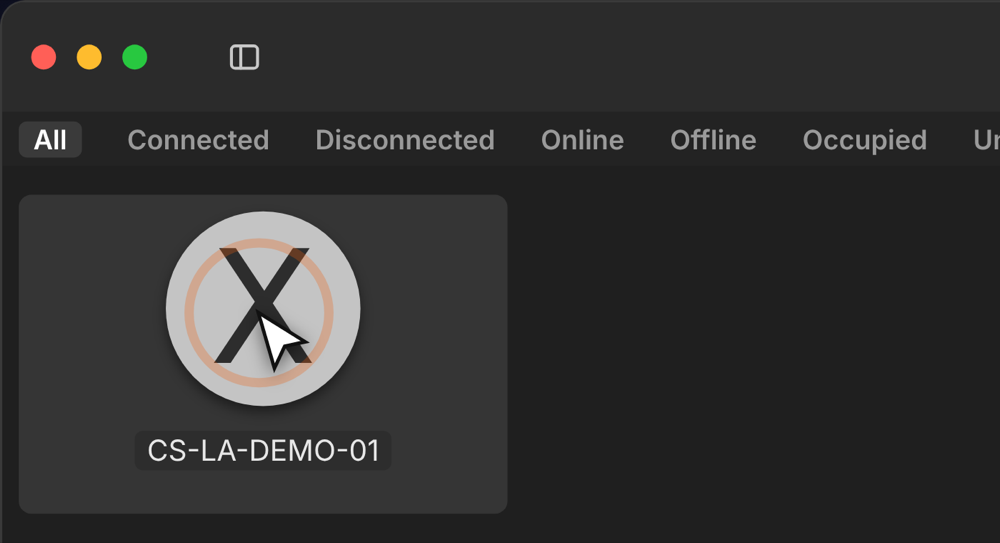
Next time, just open Jump Desktop and double-click. You can also use Connect ▾ → Open in Jump Desktop on the CloudStudio website.
Why "cloudstudio" and not my email?
cloudstudio tells Jump which company's sign-in to use, and Jump then hands you to CloudStudio. CloudStudio confirms who you are and which workstations you're allowed to see. Your access follows your CloudStudio account, so when your admin changes it, Jump updates too.
Tips for a better connection
- Use wired ethernet if you can.
- Wear headphones so your mic doesn't pick up the workstation's sound.
- Jump supports multiple displays: in the connection settings, turn on Use multiple displays.