
Settings
Open the panel and click the gear at the bottom. Click ‹ to go back.
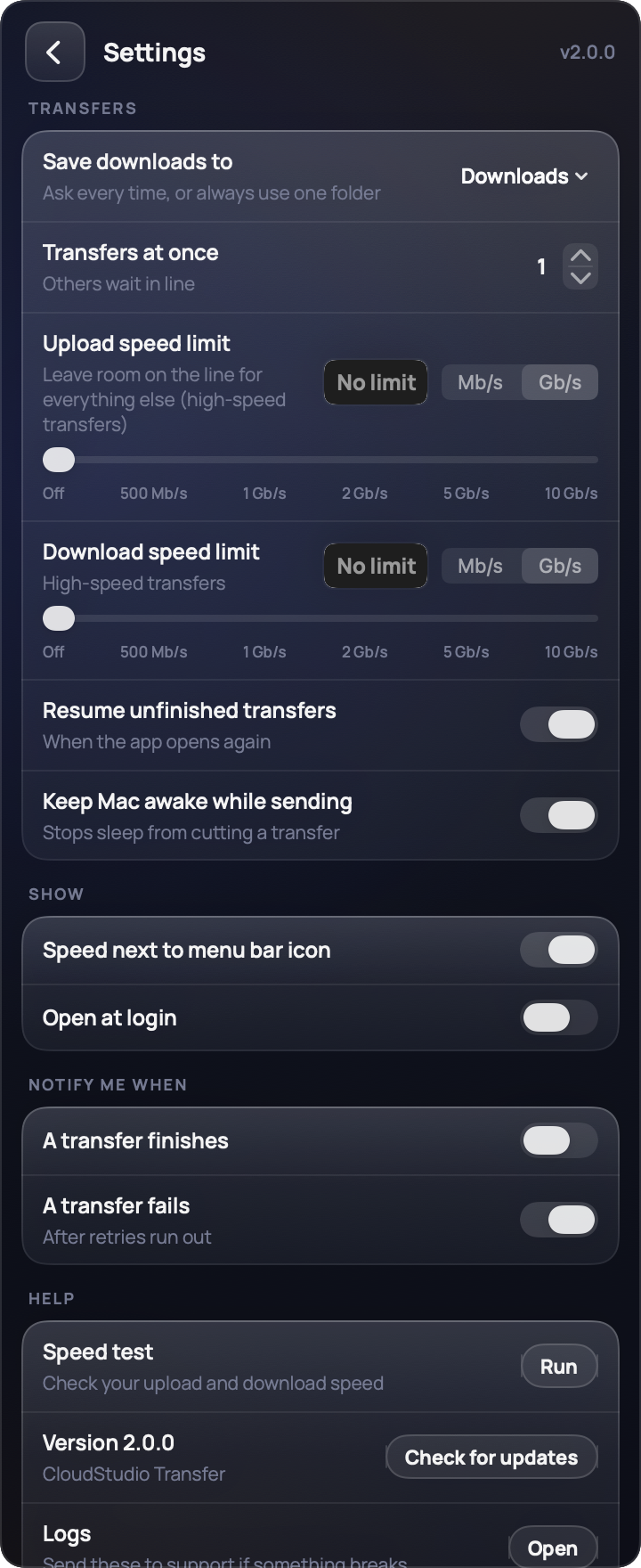
Transfers
| Setting | What it does |
|---|---|
| Save downloads to | Ask each time (default), Downloads, or Choose… any folder. |
| Transfers at once | How many transfers run side by side. Others wait in line. Default 1: one transfer at full speed finishes sooner than several sharing your line. |
| Upload speed limit / Download speed limit | Cap how fast the app sends or receives, so the rest of the office still has internet. Off = no limit. See Limit transfer speed below. |
| Resume unfinished transfers | When the app opens again, it carries on where it stopped. On by default. |
| Keep Mac awake while sending | Stops your Mac from going to sleep in the middle of a transfer. Your screen can still turn off. On by default. |
Limit transfer speed
Uploading 500 GB at full speed can leave nothing for video calls or everyone else on the network. A speed limit keeps some room free.
- Open the panel, click the gear.
- Under Upload speed limit (or Download speed limit), drag the slider to a stop: 500 Mb/s, 1 Gb/s, 2 Gb/s, 5 Gb/s or 10 Gb/s.
- Or type any number in the box and pick Mb/s or Gb/s. For example,
300Mb/s.
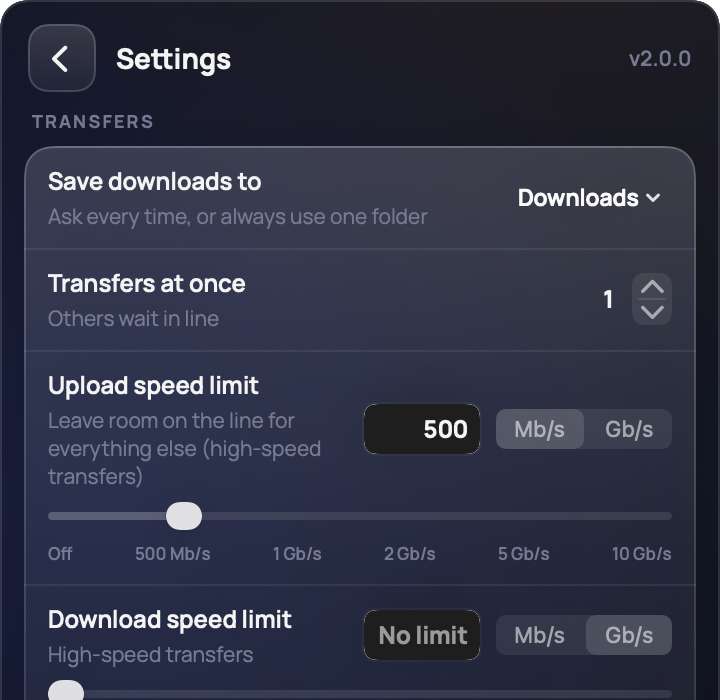
To remove the limit, drag the slider back to Off or clear the box.
Good to know
- Applies to transfers that start after you set it. A transfer that's already running keeps its speed. Pausing and resuming doesn't change that; it carries on as it was.
- Covers high-speed transfers on the new 2.0 engine. That's uploads and downloads on Hot and Archive storage, where your team has it turned on. Other transfers aren't limited yet.
- The limit is for each transfer. With Transfers at once set to 2, two transfers can each use the full limit.
Show
| Setting | What it does |
|---|---|
| Speed next to menu bar icon | Shows ↑ 1.88 Gb/s beside the cloud while something is moving. |
| Open at login | Starts the app when you log in, so it's always ready. |
Notify me when
| Setting | What it does |
|---|---|
| A transfer finishes | A macOS notification for each finished upload or download. Off by default. |
| A transfer fails | A notification once retries run out. On by default. |
If notifications never show, check System Settings → Notifications → CloudStudio Transfer.
Help
| Speed test | Run checks your connection. See Speed test. |
| Version | The version you have. Check for updates looks for a newer one. |
| Logs | Open shows the app's log. Send it to support if something breaks. |