Install CloudStudio Transfer
Takes about two minutes.
1. Download it
The first time you start an upload or download on the CloudStudio website, you'll see Get high-speed transfers. Click Install CloudStudio Transfer to download the app.
You can also download it any time from app.cloudstud.io/downloads/CloudStudioTransfer-latest.dmg.
Leave the website open
That window keeps checking for the app. Once the app is running, your upload or download carries on by itself. If it doesn't, click Agent already open?
2. Install it
- Open the downloaded CloudStudioTransfer file.
- Drag CloudStudio Transfer into your Applications folder.
- Open CloudStudio Transfer from Applications.
The app is signed and notarized by Apple, so it opens without any security warnings.
3. Find it in your menu bar
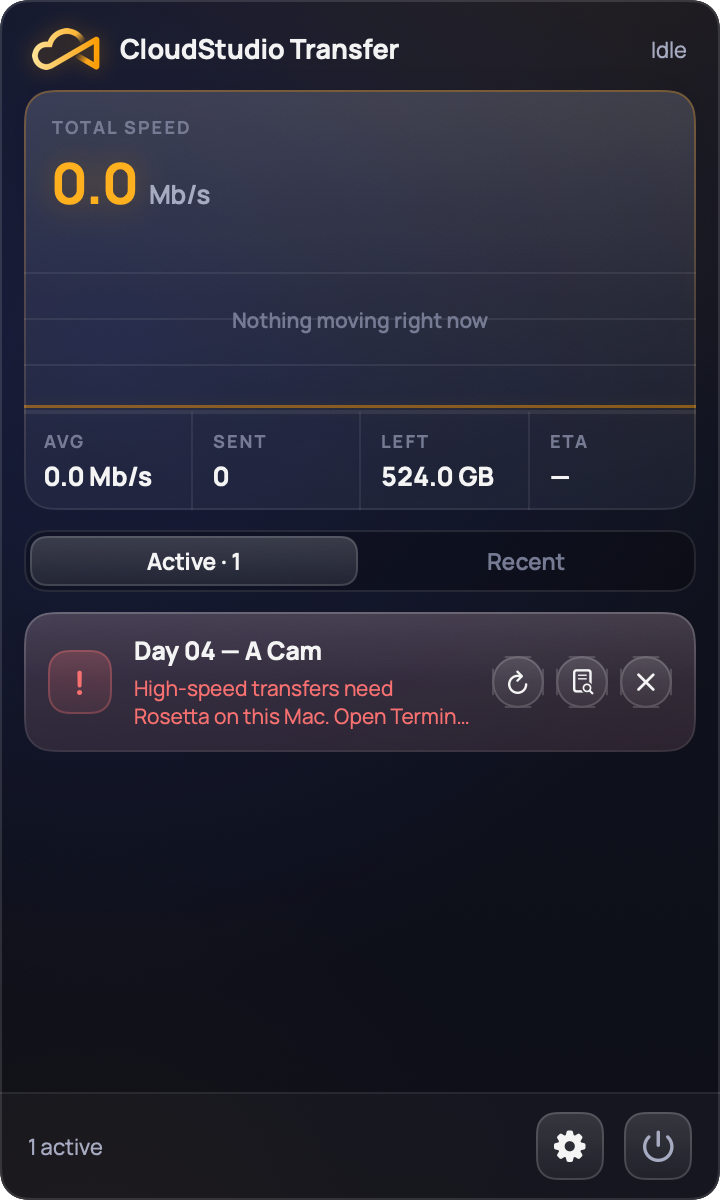
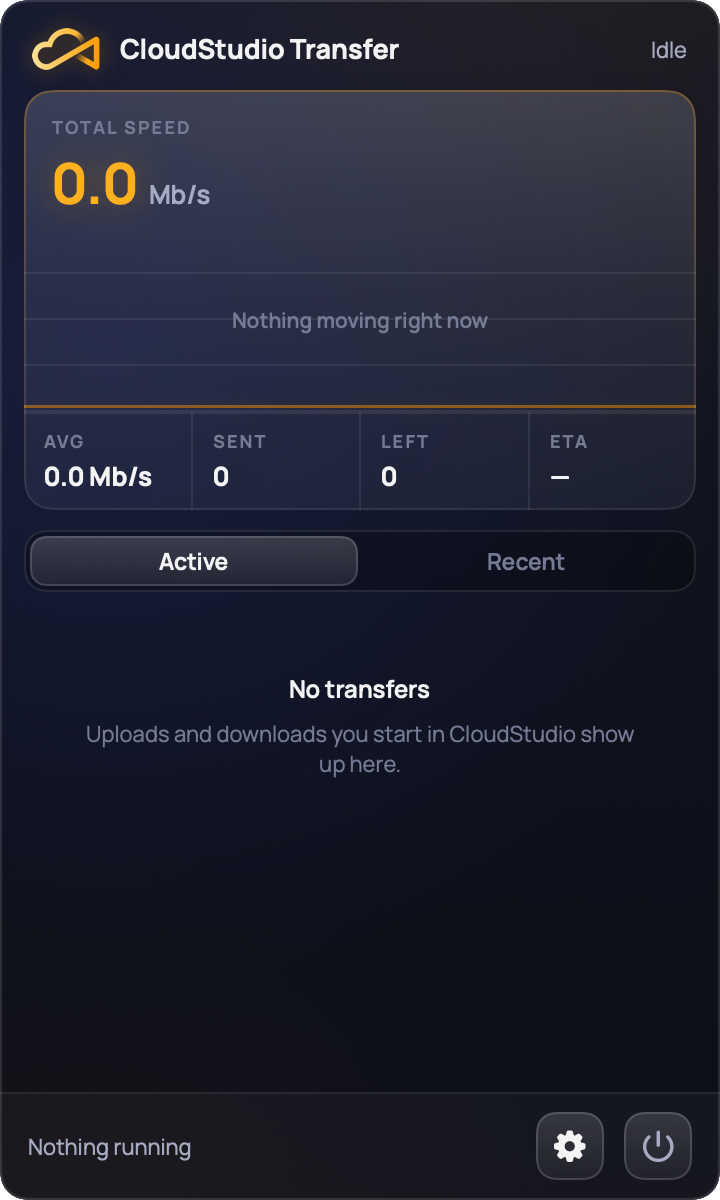
There's no window and no Dock icon. Look for the CloudStudio cloud at the top right of your screen. Click it to open the panel.

While something is moving, the icon shows the speed next to it:

4. Allow what macOS asks
macOS may ask two things the first time:
- Folder access (Downloads, Desktop, Documents, external or network drives). Click Allow. The app only looks in these places for files you send from the CloudStudio website, so it can read them straight from your drive.
- Notifications. Click Allow if you want a heads-up when a transfer finishes or fails. You can change this later in Settings.
5. Optional: open at login
So the app is always ready, open the panel, click the gear, and turn on Open at login.
Updates
The app updates itself. When a new version is out, it downloads in the background and asks to restart. It waits until nothing is transferring, and unfinished transfers carry on after the restart.
To check now: gear → Check for updates.
If the website says Update required to download, click Update now, or open the panel and choose Check for updates.
Apple silicon Macs: Rosetta
Some transfers need Apple's Rosetta. If a transfer fails with "High-speed transfers need Rosetta on this Mac":
- Open Terminal (Applications → Utilities).
- Paste this and press Return:
softwareupdate --install-rosetta --agree-to-license - Click Retry on the transfer.