
Sign in on the workstation
When you connect, the workstation shows the CloudStudio sign-in screen.
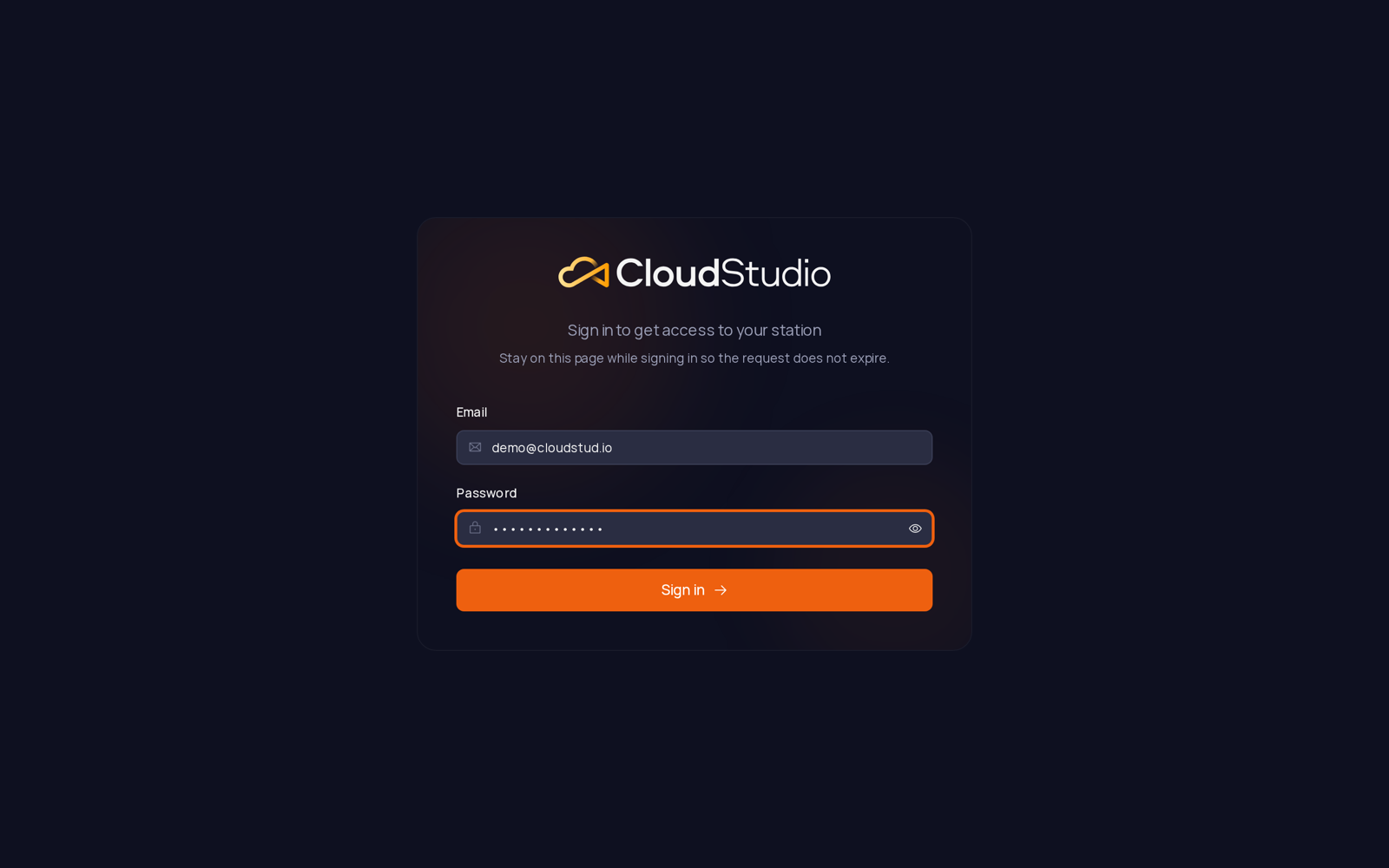
- Type your CloudStudio email.
- Type your CloudStudio password, the same one from step 1.
- Click Sign in.
The first time, the workstation creates your Mac account. That takes a moment. After that, you sign in the same way every time.
Good to know
- Your Mac password is your CloudStudio password. If the workstation locks or asks for your password, use your CloudStudio password. When you change it on the website, the workstation picks up the new one at your next sign-in.
- Stay on the page while signing in. The sign-in request times out if you leave it for a long time. If that happens, it reloads. Just sign in again.
Pasting a password doesn't work here
Your clipboard isn't shared with the workstation until you're signed in, so ⌘V won't paste on this screen. Type the password, or in Jump Desktop use Send via Keyboard → Clipboard to type out what's on your clipboard.
Next: Mount your storage