
Pause, cancel and retry
Everything happens in the panel. Click the cloud in your menu bar to open it.
Pause and resume
Hover a transfer to swap its % for Pause (❚❚) and Cancel (✕).
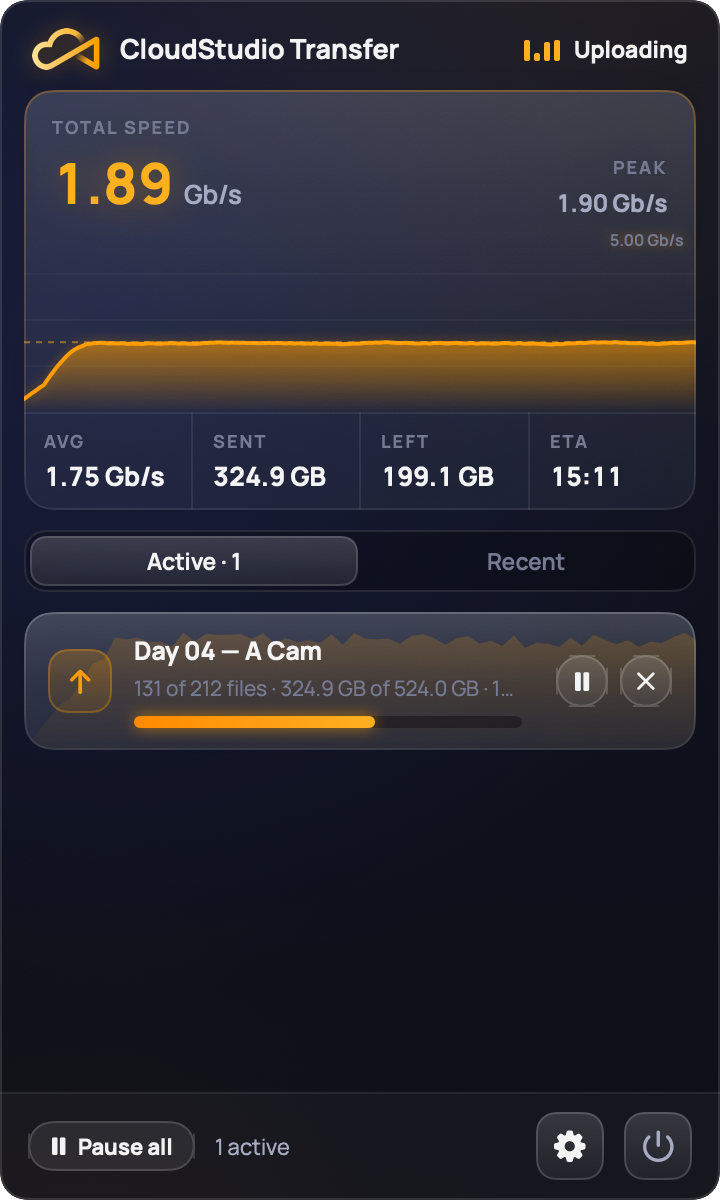
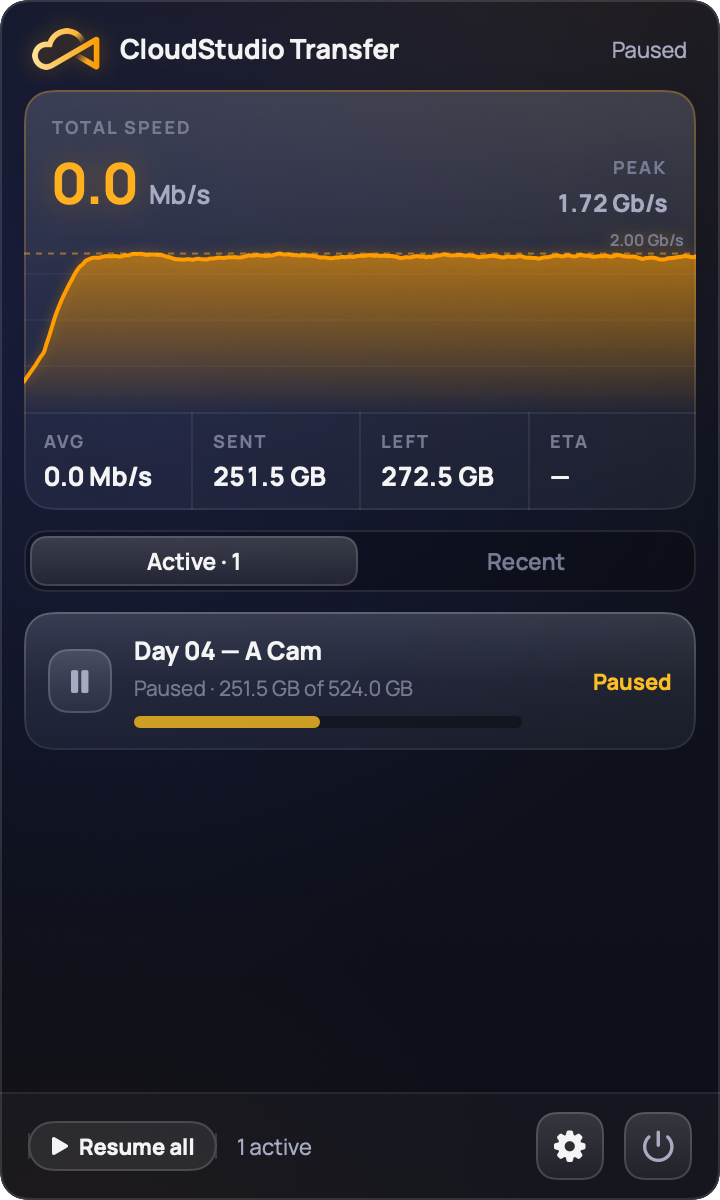
A paused transfer keeps its place and everything it already sent. Click Resume (▶) to carry on from there.
To pause everything at once, use Pause all at the bottom left. It turns into Resume all.
TIP
Pause and resume work on the Mac the transfer is running on. The website's Queue can pause it too, as long as that Mac is on and the app is running.
Cancel
Click ✕. The row asks Stop this upload? Click Stop to cancel, or Keep to carry on.
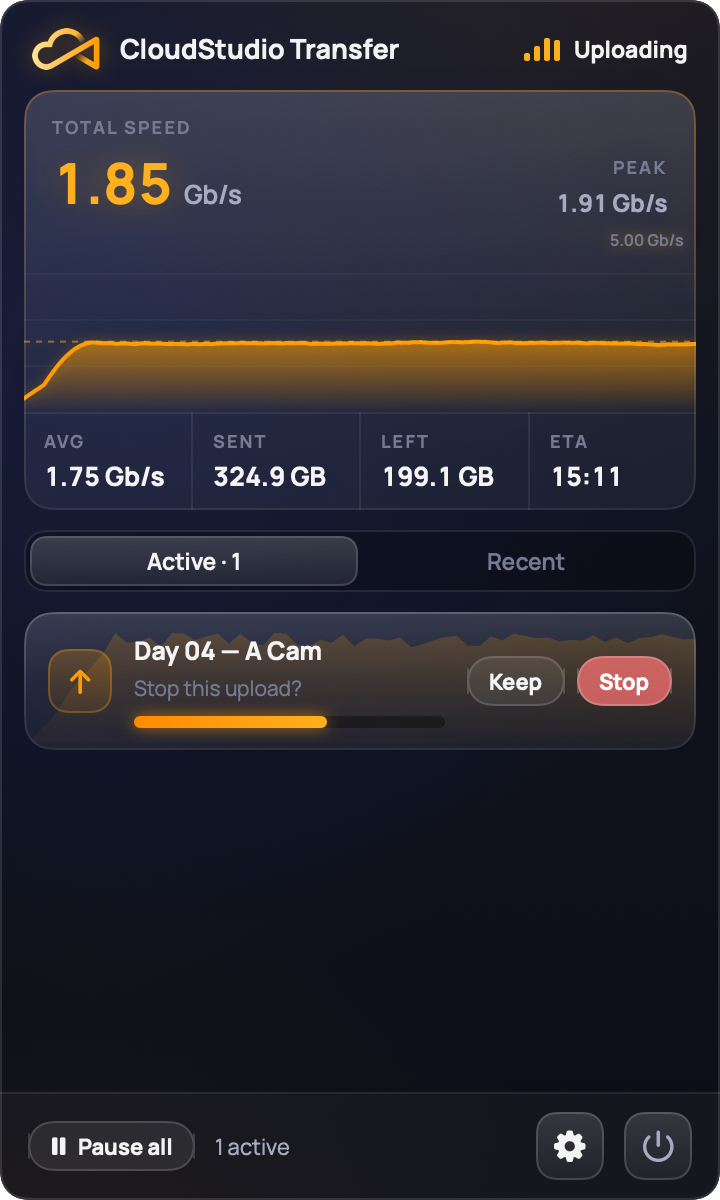
Files that already finished stay on CloudStudio.
What each state means
| Row says | What's happening |
|---|---|
| 62% + speed | Moving. The faint graph behind the row is its speed over the last minute. |
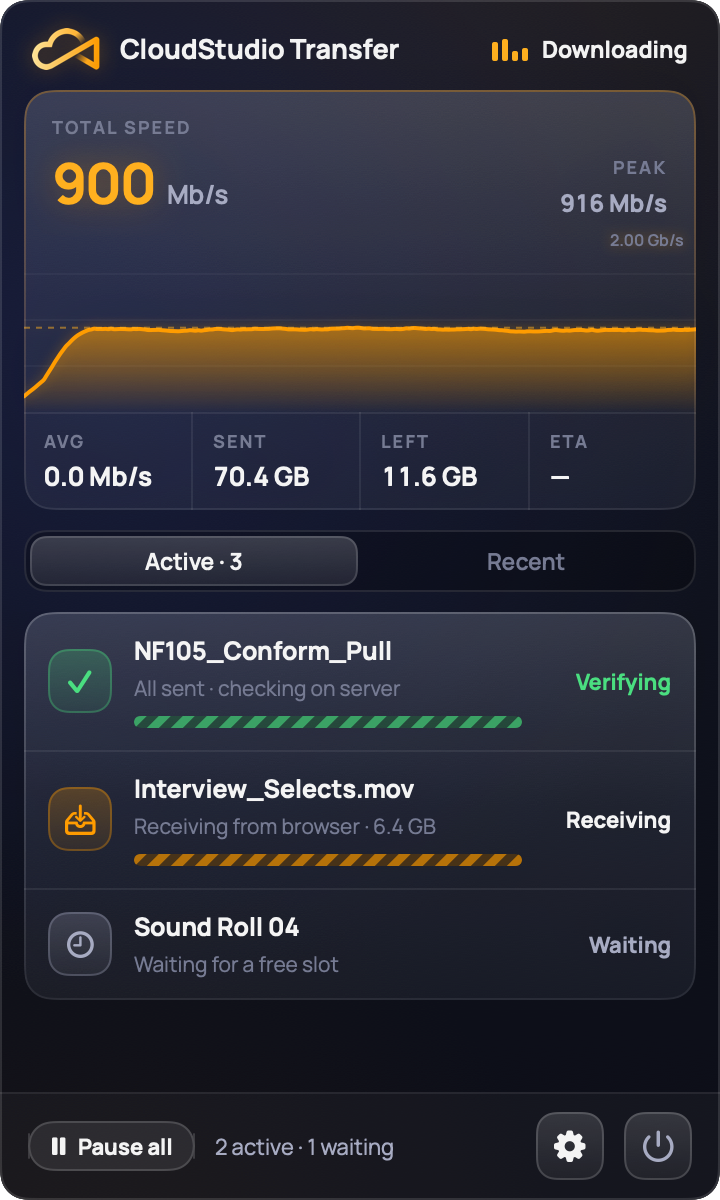
| Waiting · Waiting for a free slot | Another transfer is running. It starts when that one finishes. See Transfers at once in Settings. |
| Receiving · Receiving from browser | The website is handing files to the app. This happens for some share-link uploads. |
| Verifying · All sent · checking on server | Everything is sent; CloudStudio is checking every file. |
| Paused | You paused it. Click Resume. |
| Failed | Retries ran out. See below. |
When a transfer fails
The app retries by itself: after a network drop, after your Mac wakes up, or if the transfer stalls. You only see Failed after several tries didn't work.
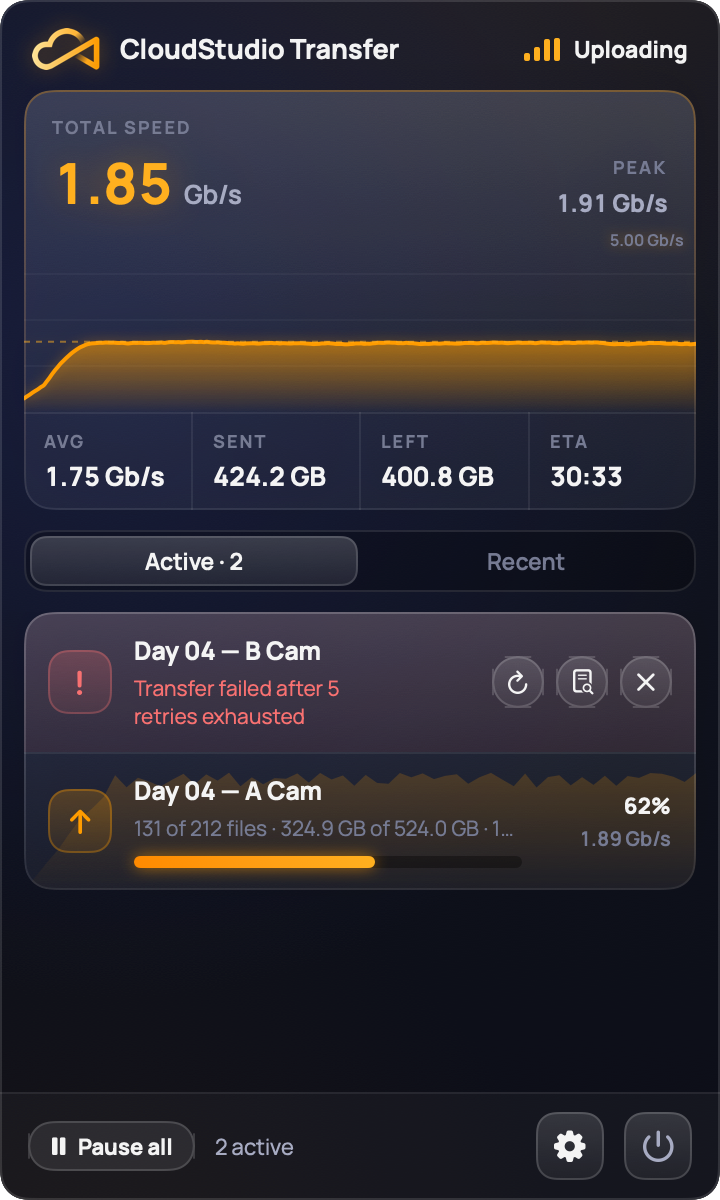
A failed row has three buttons:
- Retry (↻). Starts again and skips files that already made it.
- View log (🔍). Opens the app's log. Send it to support if a retry fails too.
- Dismiss (✕). Removes the row.
After a failure, a red dot appears next to the menu bar icon until you open the panel.

You can also retry from the website: Queue → Transfers → Retry.
Quitting the app
The power button quits CloudStudio Transfer. Unfinished transfers carry on the next time it opens, unless you turned off Resume unfinished transfers.