
Upload files
Make sure CloudStudio Transfer is running (the cloud is in your menu bar). Then start the upload on the CloudStudio website.
From the Transfers page
- In CloudStudio, click Transfers in the sidebar.
- Under Destination, choose the project and storage, then the folder the files should land in.
- Turn on Create Edit Proxies if you want editing proxies made as the files arrive.
- Under Drop files, look for the Accelerated badge. That means CloudStudio Transfer is connected.
- Drag files or folders onto the box, or click Select files / Select folder.
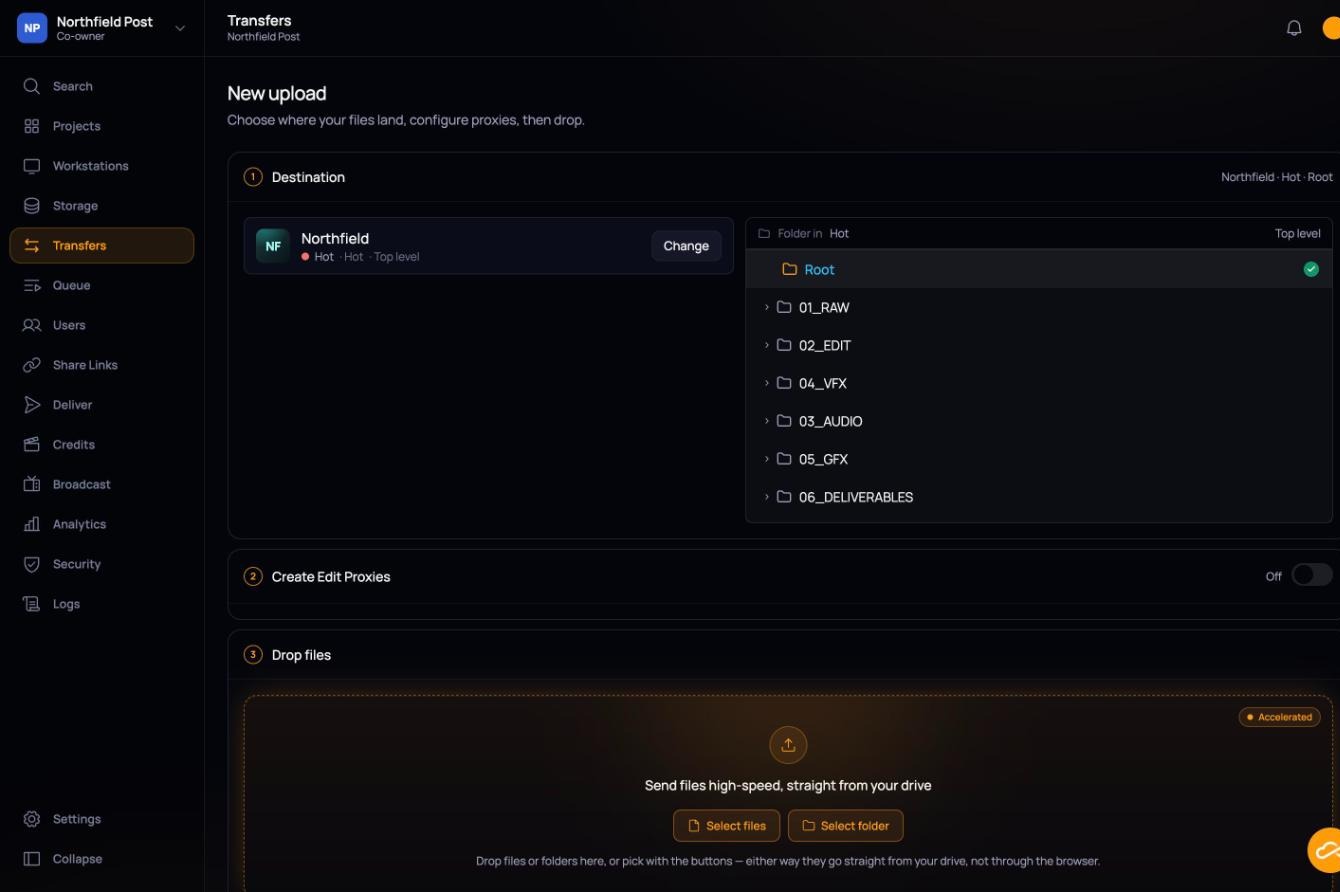
When you click Select files or Select folder, the CloudStudio Transfer file picker opens, not the browser's. Choose your files there. Folders keep their structure.
Why the app's own picker?
The app reads your files straight from your drive, once. Going through the browser would mean reading every file twice and holding it in the tab, which is much slower for big media.
From a folder in Storage
In Storage, open a folder and choose Upload here, or drop files onto the folder. The upload goes to that exact folder. If you don't see Upload here, use the Transfers page.
Watch it go
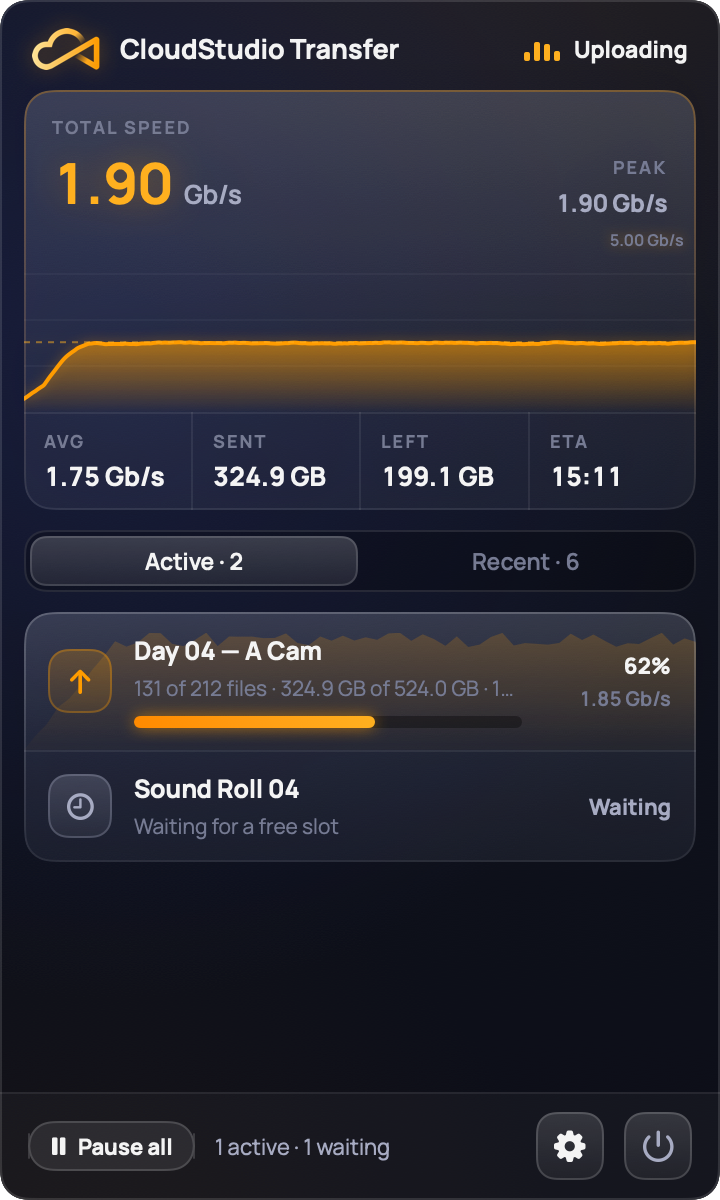
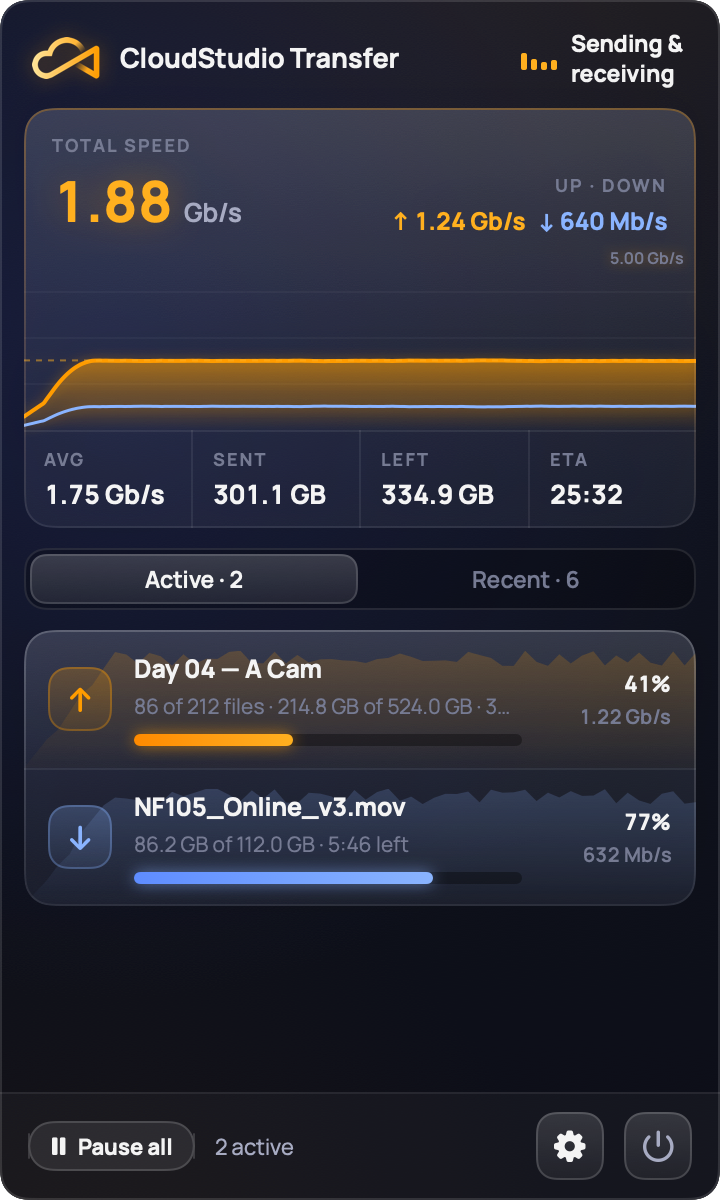
Click the cloud in your menu bar. The panel shows:
- Total speed and a live graph of the last few minutes.
- Avg, Sent, Left and ETA for everything that's running.
- One row per transfer: files done, size done, time left, % and speed.
Uploads are orange (↑); downloads are blue (↓). If both are running, the header says Sending & receiving, and the menu bar shows both speeds.

When it finishes
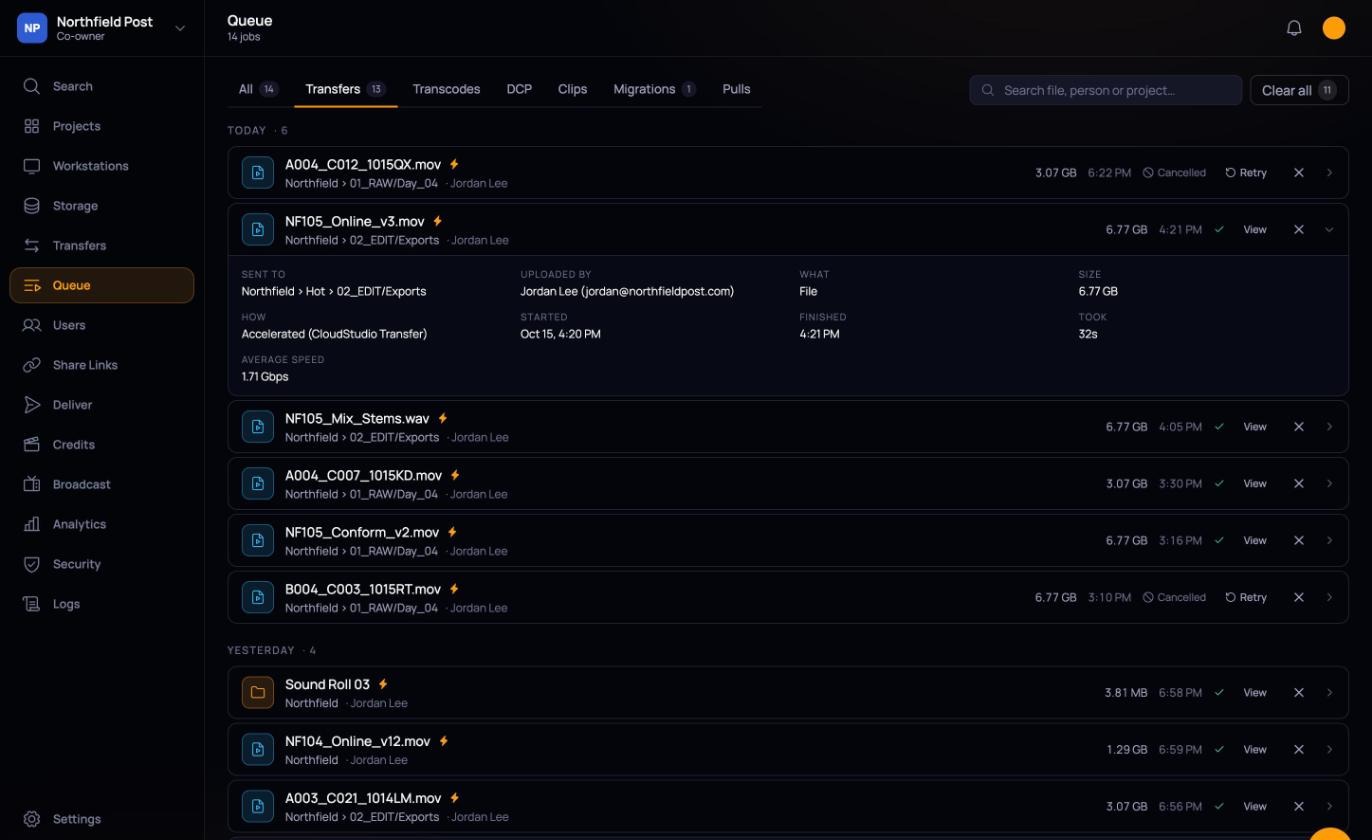
The last step is Verifying (All sent · checking on server). CloudStudio checks every file arrived complete. Then the transfer moves to Recent, and it shows as done in the website's Queue.
Files with the same name as something already in the folder are never overwritten. The new file is saved as name (1).ext.
Files your Mac makes on its own (.DS_Store, ._ files, Thumbs.db) are skipped.
In the website's Queue
Queue → Transfers lists every upload in your organization. Expand one to see where it went, who sent it, how long it took and the average speed. How says Accelerated (CloudStudio Transfer) for uploads sent with the app.
Without the app
You can still upload in the browser: choose Continue without on the install prompt. It's fine for small files. Above about 10 GB, CloudStudio will suggest the app.