
Mount your storage
CloudStudio Startup opens by itself when you sign in to the workstation. It's already signed in and knows which workstation it's on.
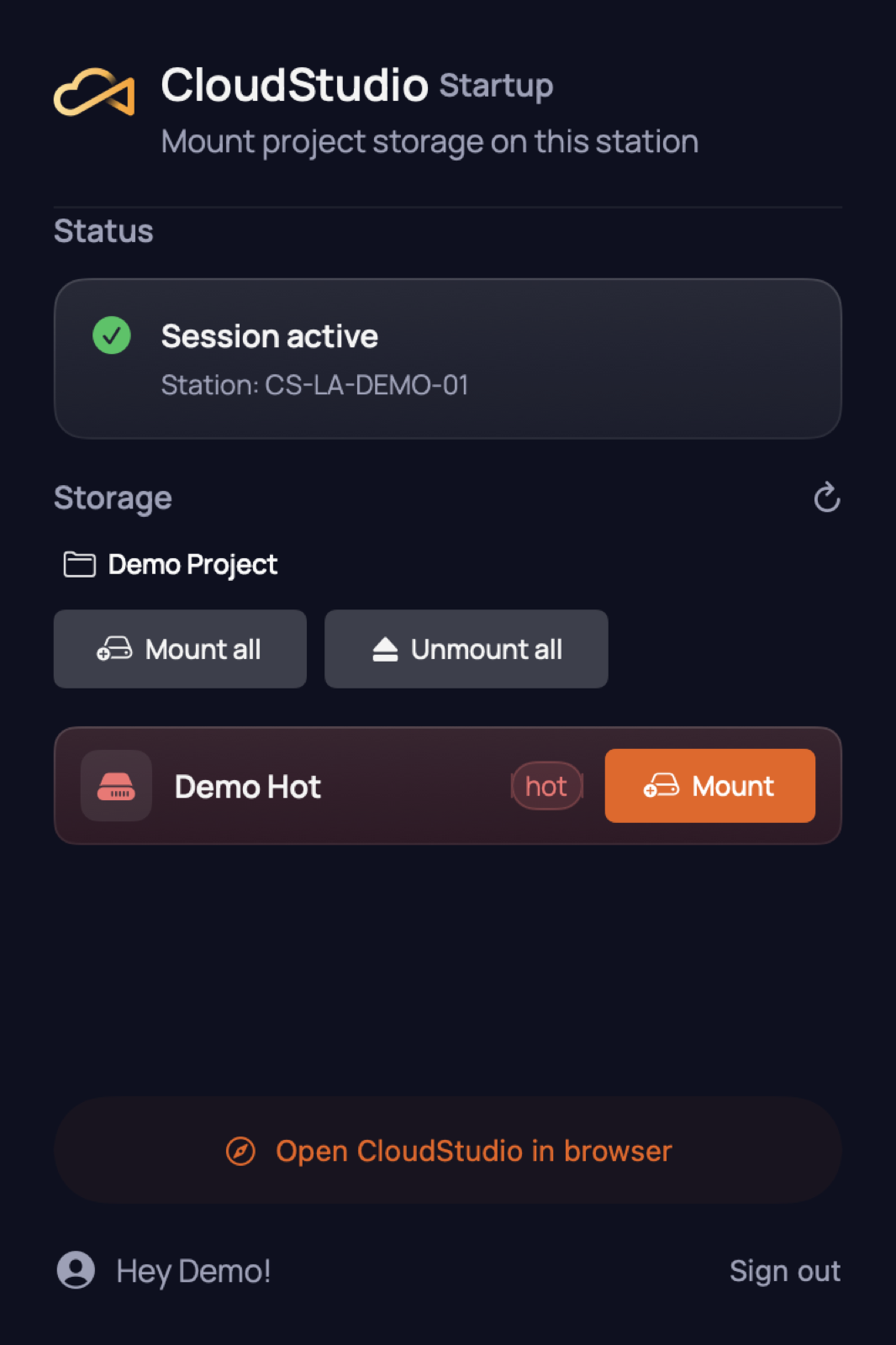
- Check the Status card says Session active.
- Under Storage, find your project's drive, for example Demo Hot.
- Click Mount, or Mount all if there's more than one.
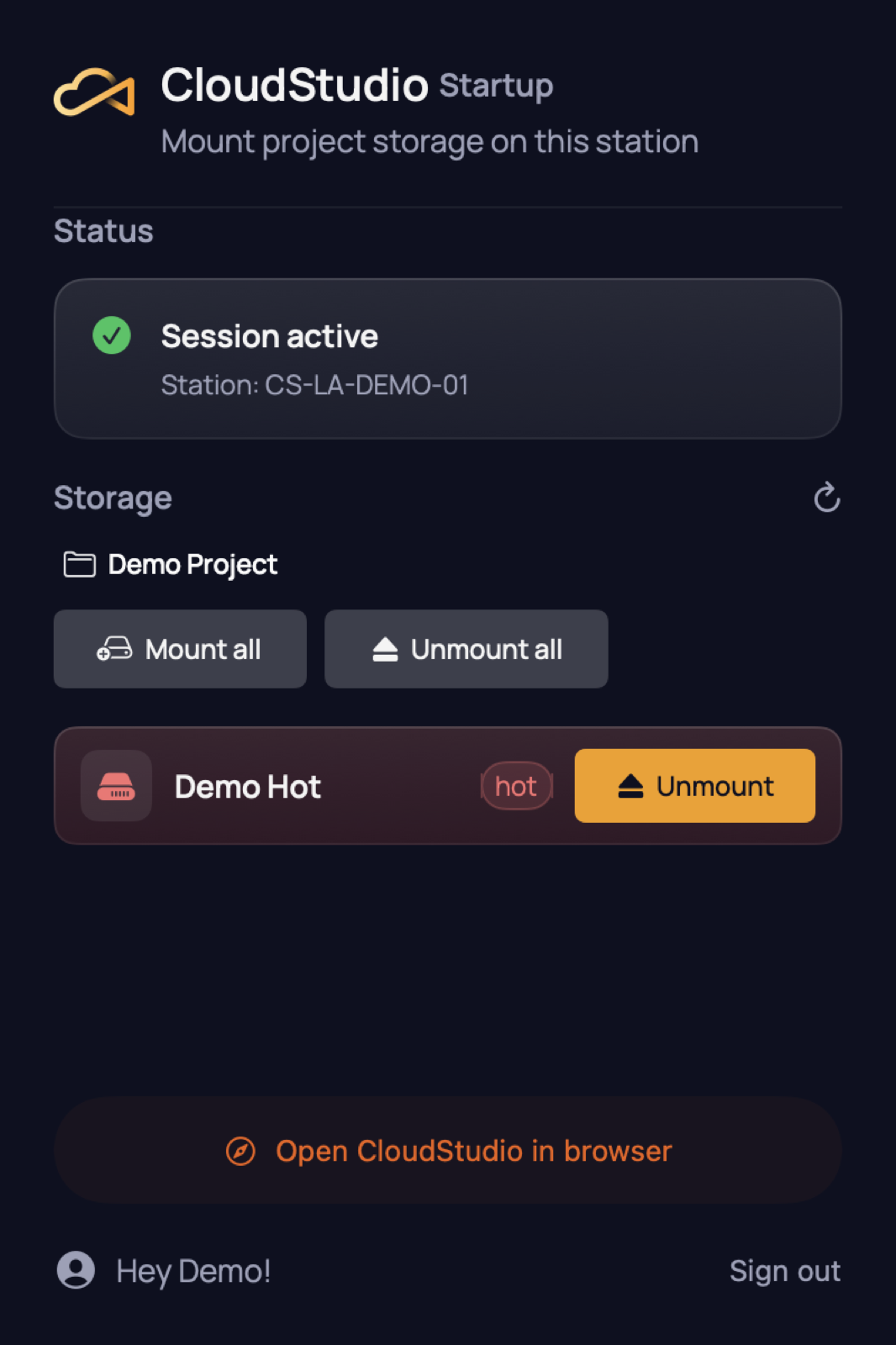
The button turns amber and says Unmount once the drive is connected.
Find it in Finder
Mounted drives show up in the Finder sidebar under Locations, with an eject button. Open them in your editing app like any other drive: Premiere, Resolve and Avid all see them as normal volumes.
How it works
- You only see storage for projects you're in. If you have more than one project, the selector above the list switches between them. Drives you've mounted stay mounted when you switch.
- Hot storage is fast shared storage built for editing straight from the drive. Your teammates on the same project see the same files.
- CloudStudio Startup lives in the menu bar too. Click the CloudStudio icon at the top right of the screen to mount or unmount without opening the window.
Something looks wrong?
Click the refresh arrow next to Storage. It refreshes your sign-in, your drives and their connection, and fixes most problems without restarting anything.
A drive you expected isn't listed
Storage follows your projects. If a project's drive is missing, ask your admin to add you to that project, then click refresh.
That's it. You're ready to edit.