
Find your workstation
After you create your account you land on app.cloudstud.io. Click Workstations in the left bar.
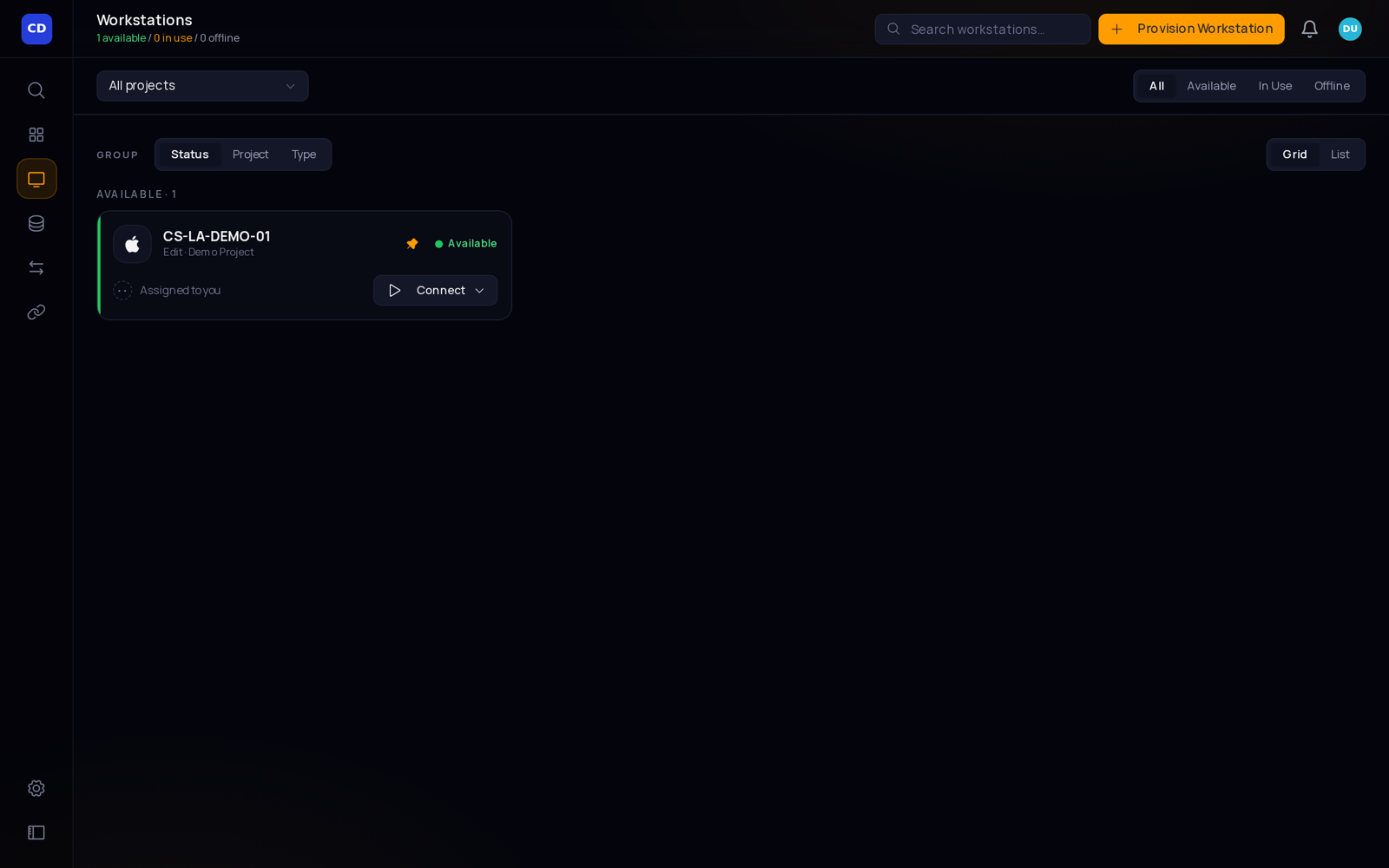
Reading the card
- Name, for example CS-LA-DEMO-01. Each workstation is a real Mac in our data center.
- Type and project, for example Edit · Demo Project. Edit, Color and Admin stations are set up for different work.
- Assigned to you: this one is yours. Your stations are pinned to the top.
- Status: Available (free to connect), In use (someone is connected), or Offline.
The Connect menu
Click Connect ▾ on your workstation:
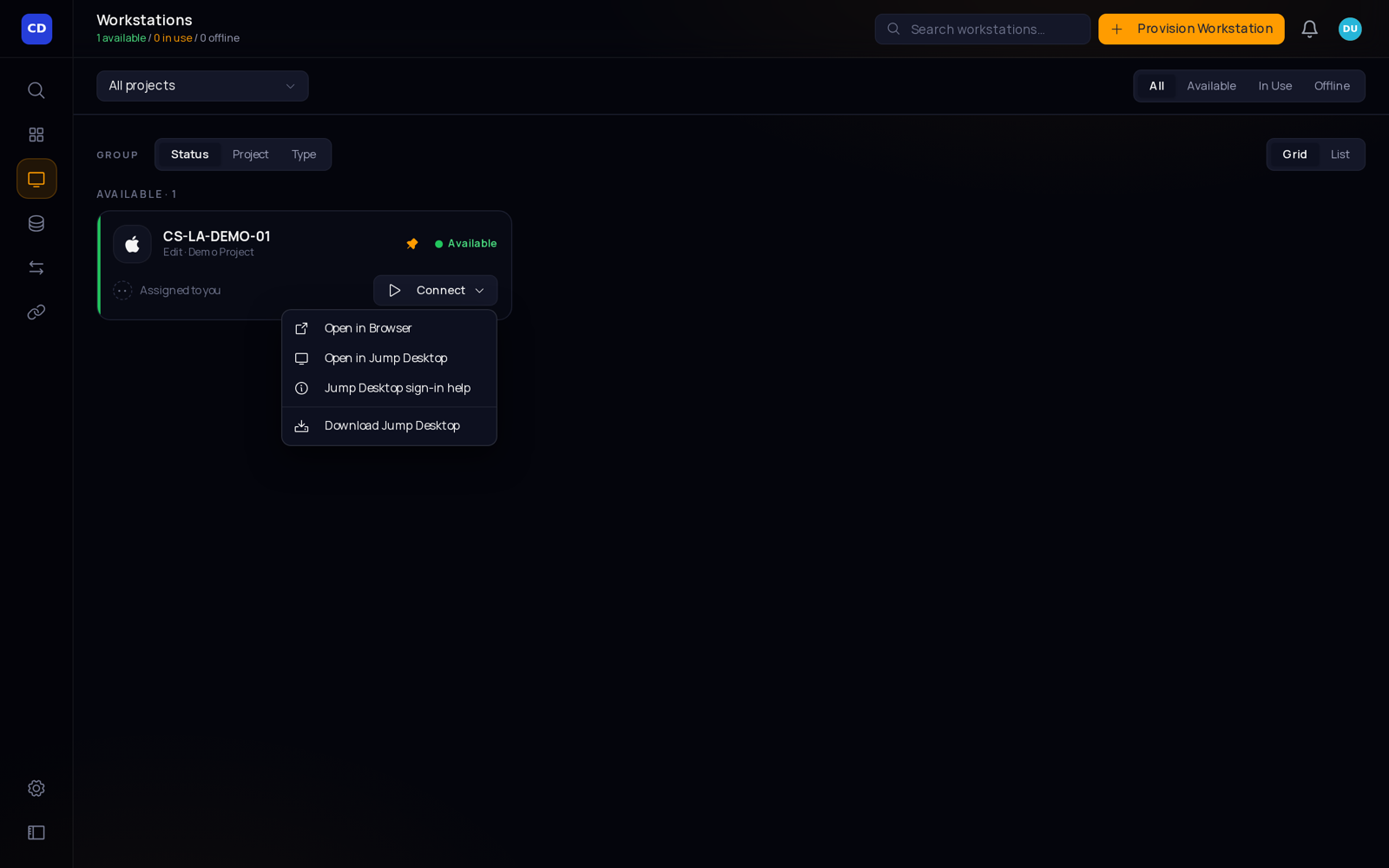
- Open in Jump Desktop: opens your workstation in the Jump Desktop app. Use this most of the time.
- Open in Browser: connects inside a browser tab. Handy on a borrowed computer, but the Jump app gives better picture, sound and keyboard support.
- Jump Desktop sign-in help: a short guide to the first-time sign-in.
- Download Jump Desktop: the app you need next.
Only one person at a time
If your workstation shows In use and it isn't you, someone else is connected. Ask your admin before doing anything else.
Next: Install Jump Desktop